This documentation page assumes that you already have a SeekTable account.
Create your free account by signing up.
SQL Server BI Tool for pivot tables, charts, tabular reports
SeekTable is a self-service SQL Server BI tool that allows users to create pivot tables, charts, and flat table reports directly from SQL Server databases:
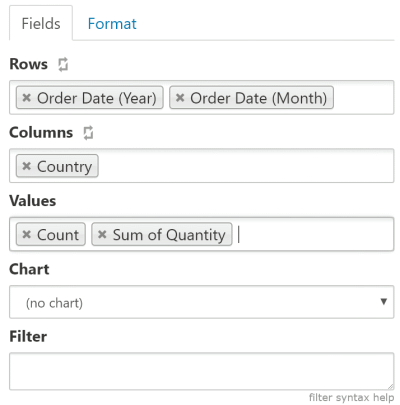
- Live SQL Server connection: report queries execute in real-time, meaning your operational reports always up-to-date (no need in refreshes).
- No ETL / zero data extraction: analyze massive datasets directly in your data warehouse, no data imports required.
- Designed for business users: Excel-like web interface enables non-IT users to perform fast data analysis and data visualization without writing SQL or exporting sensitive data.
- Governed data access: safely share common reports and data cubes with RLS. End-users queries are limited to configured data models (no direct SQL access to SQL Server).
- On-premise reporting tool: self-hosted SeekTable meets strict corporate compliance and data governance requirements. It supports fully isolated deployment environments to deliver real-time insights without your data ever leaving your internal network.
- Embedded BI: seamlessly integrate SeekTable published reports and dashboards directly into your web app. Or embed the entire SeekTable app view to let them build their own reports directly inside your app.
- White-labeling: apply your own logo, branding, and UI styles to make SeekTable look exactly like your company's own in-house reporting solution.
SeekTable may be considered as a modern lightweight replacement for SSRS tabular reports.
Setup SQL Server/Azure SQL connection
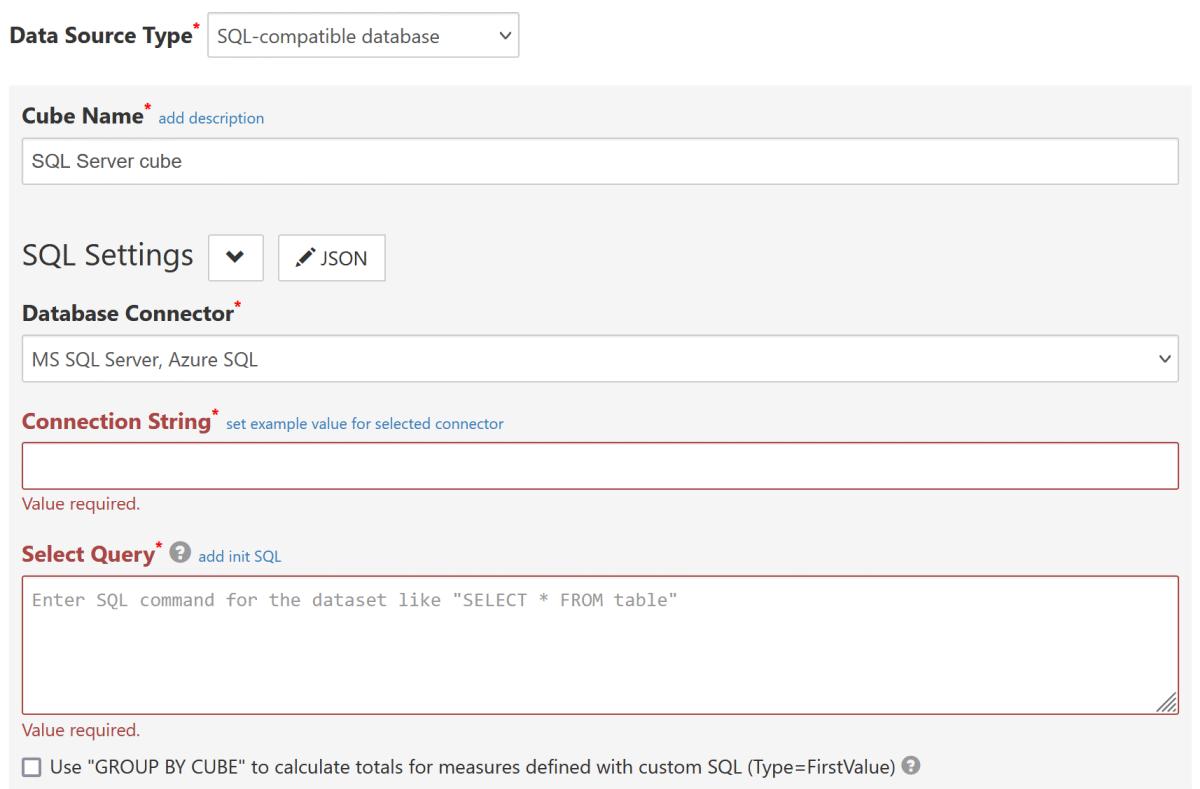
- Click the "Connect to Database" to open a new data cube configuration form.
- Choose Data Source Type:
SQL-compatible database(this opens SQL Settings section). - Choose Database Connector:
MS SQL Server, Azure SQL
-
Connection String should be a valid connection string for Microsoft SqlClient driver. For example:
Data Source=hostName;Database=db;User=user;Password=password;
Data Source
or Serverthis setting specifies the name of the server and the SQL Server instance on the server. The port number can be specified after the server name (optional): ServerName\Instancename,portNumber.
Do not use ".", "(local)", "localhost" or LAN hostname as a server name until you deployed a self-hosted SeekTable instance; cloud SeekTable can connect only to public IP address or domain name of the server. If you omit the instance name, the default instance is assumed.Database specifies the name of the database in the SQL Server instance. User SQL Server login account. It is recommended to create special user with read-only rights. Password The password for the SQL Server account logging on. Connect Timeout Default value is 15 (seconds). If you experience "Connection Timeout" errors from time to time, you may try to increase this value (say, 30). TrustServerCertificate When set to true, SSL is used to encrypt the channel when bypassing walking the certificate chain to validate trust. Encrypt When true, SQL Server uses SSL encryption for all data sent between the client and server if the server has a certificate installed. Note: do not specify "Integrated Security", this option is irrelevant in the SeekTable environment.
- Configure other required settings as described in SQL-compatible data source. As a minimum you need to specify Select Query (which determine's the dataset) and keep Infer dimensions and measures by dataset checked.
Date-part dimensions calculated with SQL expressions
To define date-part dimensions (date's "year", "month", "day" etc) you may add dimensions defined with an appropriate SQL expression:
- add new dimension with Type=
Field - fill Name with some unique value: say, "date_column_year"
- add one Parameter which should be a date-part SQL Server expression:
- For year:
YEAR(date_column) - For month:
MONTH(date_column)+ Format={0:MMM}(Jan, Feb etc) or{0:MMMM} (January, February etc) - For day:
DAY(date_column) - For day-of-week:
DATEPART(dw , date_column)-1+ Format={0:ddd}(0=Sun, 1=Mon, 2=Tue etc) or{0:dddd}(0=Sunday, 1=Monday, 2=Tuesday etc) - For quarter:
DATEPART(q , date_column) - For week-of-year:
DATEPART(iso_week, date_column)
- For year:
Troubleshooting
- ERROR: A connection was successfully established with the server, but then an error occurred during the pre-login handshake. (provider: SSL Provider, error: 31 - Encryption(ssl/tls) handshake failed)
-
This error occurs due to no common encryption algorithms between the client and the server.
The most likely cause is that your SQL Server version (2017 or prior) only supports older SSL protocols, which are currently disallowed due to known security weaknesses.
The solution is to disable server's certificate validation and/or encryption by adding
TrustServerCertificate=true;Encrypt=false;to the connection string.
This may not help for older SQL Server versions (like 2008 or 2012). In this case you can consider to use self-hosted SeekTable deployment and configure it to use specialseektable/pivotdataservice-legacyssldocker image (where deprecated SSL versions are enabled):- edit 'docker-compose.yml' (say, with nano)
-
change
seektable/pivotdataservice:latesttoseektable/pivotdataservice-legacyssl:latest - save changes and re-create SeekTable docker containers:
$ docker compose stop
$ docker compose up -d